
HTB Access Writeup
Access is an easy-medium level HackTheBox machine that involves gaining an initial foothold by finding data that’s available by a public facing service. Using mdb-tables, I was able to export the Microsoft Database entries where afterwards, I did some simple bash scripting to find some clear passwords that allowed me to logon as a low privileged user. To privesc, a runas /savecred vulnerability was abused to run an executable as Administrator.
Enumeration
First, start of by doing a basic nmap numeration scan: nmap -sC -sV -oA NAME 10.10.10.95. Doing this, it will output the result to whatever you set NAME to. Here are the results:

There are a few things that we see, that we can do further enumeraiton on:
FTP Enumeration
One of the first things we see on the nmap scan is that port 21 - FTP is open. With that, it is also revealed that there is anonymous login allowed. This means that when attemping to FTP into 10.10.10.98 we can use username anonymous and any password of our chosing to connect to the service.
Logging in via FTP reveals two directories: Backups and Engineer. Inside Backups there is a backup.mdb and inside Engineer there is an Access Control.zip. Here’s a picture of the file directory shown when logging into FTP:

When you’re inside each of the respective directories, to get the file on your local system you can do get "Access Control.zip" or get "backup.mdb". Getting in on your local system means we can do further analysis.
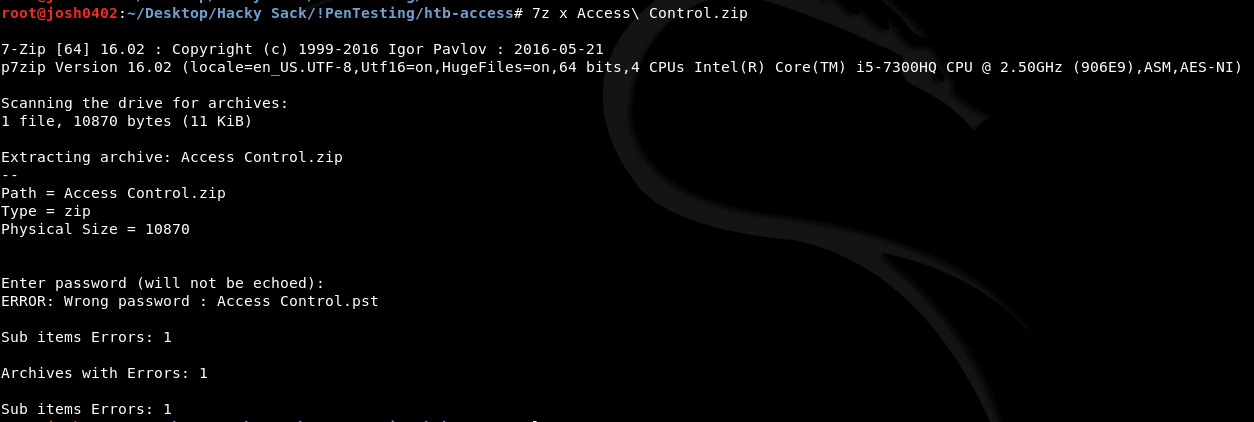
Trying to do unzip Access\ Control.zip shows that we cannot unzip the file because unsupported compression method 99. Doing some research, I try using 7zip: 7z x Access\ Control.zip. This time, it prompts us for a password which is currently still unknown shown here:
Next, let’s observe the backup.mdb file. *.mdb stands for microsoft database which is created by Microsoft Access which is a desktop database program. It holds information in tables/columns/rows.
To lists the tables I first try to do: mdb-tables.mdb but I get this error:

Doing some research, I realize that when using get [file] in ftp, the default mode is ascii. There are a couple modes of transferring files: ascii and binary. Basically here’s what each of the following does:
ascii: transfers files as text. Exampels of files to get using this mode: .txt, .asp, .html, .php, etc.
binary: transfers files as raw data. Examples of files to get using this mode: .wav, .jpg, .gif, .mp3, and .mdb files.
Now knowing this, we just need to get the file again, but this time in binary mode. We can do this by just typing in binary when in the ftp shell to switch to binary mode. Conversely to switch to ascii mode you can just type in ascii. Here’s the process shown below along with listing out the tables stored to show we transferred the file successfully:

Looking through the mdb file
So you can list the tables by doing mdb-tables backup.mdb. Then to export the tables I do the command for i in $(mdb-tables backup.mdb); do mdb-export backup.mdb $i > $i; done. So what this command does, is that for every output from mdb-tables backup.mdb it will export that table and save it as the table name. Doing so will create a bunch of ASCII texts that I later moved into a separate folder to keep things clean and organized.
The next step is going through each of the text files and trying to find something useful. For this part, I created a simple bash script: finder.sh. What it basically does is that for all the text files in the directory, it does a grep check and looks for the pattern/string pass (password), if it finds that string, it will output the file name. The -q means that it will only return Here’s the bash script (also attached above):
Executing the script bash finder.sh reveals two files that have possible interesting material:
Checking each of the files auth_user, and USERINFO. We see there’s some credentials in plaintext in auth_user:
So we got username engineer and password access4u@security. There was a directory earlier called Engineer with the locked zip file! Going back and trying to unzip the file with the password unlocks it!
Unzipping outputs a pst file called Access Control.pst. Doing some research a pst file is a Personal Storage Table... used to store copies of messages, calendar events, and other items within Microsoft software. So we essentially got some message.
Initially, doing cat did not work. Doing some research, I found out by this website that we can do readpst Access\ Control.pst and it will output a file which contains the message in plaintext format. The file it outputted for me was Access Control.mbox and thus doing cat Access\ Control.mbox gets us the message:
Cool, we got another credential: security:4Cc3ssC0ntr0ller.
Enumerating telnet and User flag
Moving onto the next service that’s open: telnet.
Doing telnet 10.10.10.98 we are greeted by a login, trying the credentials we found above, we got a shell! Doing a whoami check shows that we are access\security:

Looking around and ending up in the Desktop directory, I eventually found the user.txt flag:
Now let’s check the other users in the system which is under C:\Users\

Checking if we have access to Administrator it returns Access is denied. There is another user that we can enumerate: Public.
Initially doing a dir check to see what’s inside reveals a few files:
Checking into each of those directories, there wasn’t anything interesting. Though doing a more thorough search by doing dir /A to reveal hidden files revealed more files in C:\Users\Public:
There’s a Desktop, Favorites, and a Libraries folder that was hidden. Checking the Favorites and Libraries folder didn’t reveal anything interesting. However checking the Desktop folder, there’s a .lnk file!
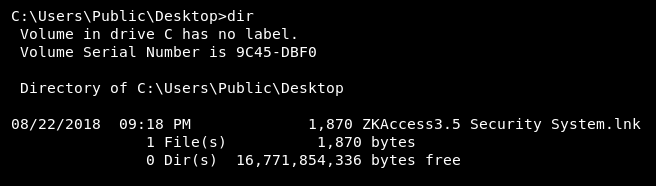
Doing some google searches and eventually opening up this article I learn that a .lnk file is a shortcut file used by windows to point to an executable file. Doing type "ZKAccess3.5 Security System.lnk" to show any strings that might be useful outputs the following:
There are a few things interesting about the strings it outputted:
runas.exeis being executed which is in theSystem32file\savecredand something called
Access.exeis being executed
Exploitation/Privilege Escalation - Getting Administrator Access
Doing some research, I found out more about \savecred here. This is what it says:

Basically runas /savecred, is similar to using the sudo command to execute any commands that needed escalated priviledges. E
Remembering what I’ve done in previous challenges and doing some research about msfvenom, I learn that we can create a custom executable that will basically get us a reverse shell using metasploit and msfvenom. First, I do some research and end up on this website and use the Windows Meterpreter Reverse TCP Shell.
Explanation of command above: msfvenom is the program name, -p is the payload, LHOST is the local host (our host machine, without the <>). LPORT is the port we’ll be listening on (again without the <>, I chose 4444 for this challenge), -f is the format, in this case, .exe. And the > means we’ll be saving it as shell.exe.
This will output the resulting executable in shell.exe.
First, on the directory shell.exe is in, I do python -m SimpleHTTPServer. This will create an HTTP server hosting the files.
Second, I have to get the shell.exe file on the victim machine. I realize that I’m on a directory that I do not own (since we are user Security, this can be confirmed by doing powershell Dir | Get-Acl and it shows that it is owned by BUILTIN\Administrators.). So I switch to C:\Users\security\Desktop. Then, doing powershell Get-Host shows that we’re on powershell 2.0. Meaning Invoke-Webrequest isn’t a thing (it’s only in versions >= 3). Doing some research and attempting a powershell 2 workaround found here ended up not working for me. I eventually land on this webpage and I discover that certutil can be used to download the file. So with the HTTP server running on my host machine I do:
This will output the downloaded file as shell.exe.
Third, I need to get the metasploit ready:
*NOTE: It’s important the payload you set is the same used in msfvenom
Fourth, now that metasploit is ready, all we have to do is execute the shell.exe as administrator. Doing a little research on runas with savecred available. I come across this website detailing on how to use the runas command. In short, I do this command to execute the program:
Checking back to my other terminal which has metasploit open, there’s a reverse TCP handler!
Now on metasploit, we can do sessions -i 1 to go into interactive mode with session 1.
Doing a sysinfo check confirms that I’m on ACCESS with the correct OS and version. Last, doing shell to spawn a windows shell and then doing whoami on that shell reveals that we are Administrator!

Tracing back earlier to the C:\Users\ directory, we see there’s an Administrator directory that, this time, I can get into. Going in the Administrator\Desktop directory and doing a dir /A check, we find the root flag!

Flags
User: C:\Users\security\Desktop\user.txt
Root: C:\Users\Administrator\Desktop\root.txt
Last updated